How to Choose the Best Fiber HDMI Cable?
Choosing the best Fiber Hdmi Cable requires more than chasing the highest bandwidth number. Your display, source device, distance, and installation path must work together. A 10-meter cable behind a wall faces different challenges than a two-meter cable beside a gaming monitor.
The HDMI Forum’s HDMI 2.1 specification supports bandwidth up to 48 Gbps, 8K at 60 Hz, 4K at 120 Hz, Dynamic HDR, VRR, and eARC. These features create demanding signal conditions. However, a cable labeled “8K” does not automatically guarantee reliable performance. Connector quality, optical conversion, shielding, bend radius, and certification also matter. Small details can decide whether the screen stays stable during a dark gaming scene or flashes unexpectedly.
The Consumer Technology Association’s 2024 U.S. Consumer Technology Ownership and Market Potential Study shows how widely advanced displays have entered homes. This trend increases demand for dependable high-speed connectivity, especially in home theaters, conference rooms, and gaming setups. HDMI Forum President Robert Blanchard described the HDMI 2.1 release by saying, “The HDMI Forum is excited to announce the release of the HDMI 2.1 Specification.” His statement highlights an important point: new features need suitable system components, not marketing labels alone.
A Fiber Hdmi Cable can solve long-distance signal-loss problems, but it is not a universal fix. Some models require directional installation or external power. Some have limited compatibility with older equipment. A careful choice begins with measured distance, supported resolution, refresh rate, and return protection. Specifications help. Real-world testing matters more.
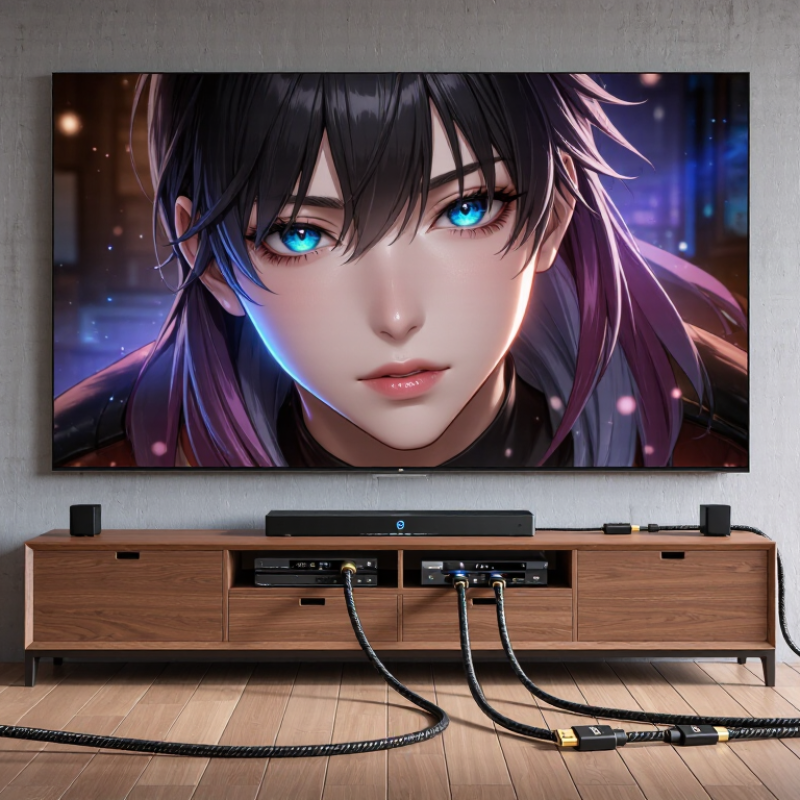
Understanding Fiber HDMI Cable Technology and Signal Transmission
How to Choose the Best Fiber HDMI Cable?
Fiber HDMI cables use optical fibers to carry high-speed video and audio signals over longer distances. Unlike standard copper cables, they convert electrical data into light inside the connector. This design reduces electromagnetic interference and helps maintain signal quality across walls, ceilings, and large meeting rooms. However, the cable does not improve a weak source signal. It mainly preserves the original signal during transmission.
Check the required resolution, refresh rate, HDR format, and audio channels before buying. A cable designed for 4K at 60Hz may not support 4K at 120Hz or higher data rates. Read the technical specification carefully. Some active optical cables are directional, with separate source and display ends. Installing one backward can produce a blank screen. It happens more often than expected.
During installation, avoid sharp bends near the connectors. Fiber strands are delicate, even when the outer jacket feels strong. Keep the minimum bend radius listed by the manufacturer. I once focused only on bandwidth and overlooked connector power compatibility. The system worked intermittently, which made troubleshooting unnecessarily difficult. Test the cable with the actual source, display, and content before closing the wall. Confirm stable playback, audio synchronization, HDR switching, and sleep-wake recovery. Certification and laboratory test reports also provide stronger evidence than impressive packaging claims.
Identifying Your Video, Audio, Distance, and Device Requirements
How to Choose the Best Fiber HDMI Cable?
Choosing a fiber HDMI cable starts with your actual video requirement. Check the source and display specifications for resolution, refresh rate, HDR, and color depth. A gaming setup may need 4K at 120Hz, while a projector may prioritize stable 4K transmission over long distances. Distance changes everything. Measure the route, not the room. Add space for bends behind furniture and inside conduits.
Audio needs equal attention. If your system uses eARC, confirm that both connected devices support it. Review the required audio formats, including multichannel surround sound and uncompressed audio. A cable can carry a sharp picture but still create audio dropouts when the equipment exceeds its limits. That assumption fails. I have seen installations work at low resolution, then flicker after a refresh-rate change.
Device compatibility also matters. Fiber HDMI cables are often active and may have specific source and display ends. Install them in the correct direction. Check whether the cable requires power from the HDMI connection or an additional USB supply. For a long run, inspect the bend radius and avoid tight coils near connectors. Test the complete setup before closing walls or mounting panels. Keep the packaging until the system passes repeated tests. A specification sheet helps, but real equipment can behave differently. Measure twice. Test at the settings you will actually use.
How to Choose the Best Fiber HDMI Cable?
Match the cable to your video bandwidth, audio format, transmission distance, and device capabilities.
The chart shows approximate active-video data rates for common formats. A 18 Gbps link is generally associated with HDMI 2.0-class 4K at 60 Hz, while a 48 Gbps link is associated with HDMI 2.1-class 4K at 120 Hz and 8K at 60 Hz with format-dependent chroma and color-depth limits. Actual requirements also depend on refresh rate, chroma subsampling, color depth, HDR, and compression.
Video Choose the cable bandwidth from the display resolution, refresh rate, HDR mode, color depth, and chroma format.
Audio For high-bitrate surround formats and object-based audio, verify that both source and display or receiver support the required HDMI audio features.
Distance Fiber HDMI cables are useful for long cable runs because they can preserve high-bandwidth signals over distances where passive copper cables may become unreliable.
Devices Check the HDMI version and feature support of every device in the signal path, including the source, switch, receiver, and display.
Matching HDMI Standards, Bandwidth, and Supported Features
Choosing a fiber HDMI cable starts with the HDMI standard your equipment actually supports. A 4K television running at 60Hz usually needs around 18Gbps bandwidth. Higher refresh rates, 8K resolution, dynamic HDR, and variable refresh rate require up to 48Gbps. Check both source and display specifications, not only the cable packaging.
Feature matching matters more than impressive resolution claims. Confirm support for HDR formats, gaming refresh rates, automatic low-latency mode, and enhanced audio return channel. A cable may carry video correctly while failing eARC or unstable high-frame-rate signals. I once tested a long cable that worked perfectly at 4K, then dropped frames at 4K with HDR enabled. The problem appeared only during fast gameplay.
Length also affects reliability. Fiber cables are useful for long runs because they resist signal loss and electrical interference. Many are directional, so connect the source end to the player and the display end to the screen. Some installations require power through the connector, especially with older equipment. Leave a gentle bend near each port. Avoid tight loops behind the television. Certification is helpful, but real testing remains important. Play a high-bandwidth scene for several minutes and inspect for flicker, black screens, missing audio, or handshake delays. I would not assume every “8K” label guarantees every 8K feature. Specifications can be incomplete, and that deserves a second check.